Test Network Speed of Ethernet Ports

If you have just bought a new (to you) nic card or other networking device and want to test that all of the ports can pass traffic at the expected rate, as long as you have nc and the firewall ports open on a “server” with a known good nic and have nc installed on your “client” device that you want to test it is very easy to test.

Of course, if you are testing a switch itself, then it is just a matter of having two known good machines to act as the client and the server and to insert the switch between them.

Ensure that you have a high port that is allowed by your firewall.  On the server side run the following to set up a listening service

nc -l -k <port> > /dev/null

Then on the client run the following:

$ dd if=/dev/zero bs=1M count=1K | nc -vn <server-ip-addr> <port>
Connection to <server-ip-addr> <port> port [tcp/*] succeeded!
1024+0 records in
1024+0 records out
1073741824 bytes (1.1 GB) copied, 9.0998f s, 118 MB/s

Then, just remember to multiply the MB copied to the server by 8 to get the rate in megabits/s.

Creating, Updating Expiration of and Posting PGP Keys

Following are my notes and how-tos on creating, and managing PGP keys.

Here is a link to a website with some very good information and best practices for managing keys.

Most of this article deals with the concept of setting an expiration date on a set of keys to a reasonable time and how you can update that key as time goes by.  You should set a reminder in whatever calendar system you are using to remind you to update the expiration date BEFORE it does actually expire a couple of weeks ahead of time.  I typically set my keys to expire in 13 months and set my calendar to remind me after 12 or so months.

Creating a key set and distributing your public key

As mentioned, and when prompted, set a reasonable expiration time.  Also create a revocation cert.  See the aforementioned link for details.

Create a key

gpg2 --gen-key

List keys

gpg2 --list-keys
/data/home/rchapin/.gnupg/pubring.gpg
-------------------------------------
pub   4096R/E5170CE8 2015-03-26 [expires: 2019-03-14]
uid                  Ryan Chapin <rchapin@nbinteractive.com>
sub   4096R/-------- 2015-03-26 [expires: 2019-03-14]

Distribute Public Key (use hkps, encrypted connection)

gpg2 --keyserver hkps://hkps.pool.sks-keyservers.net --send-keys E5170CE8

Searching for keys and verifying that they have been posted to a public keyserver

List your keys

gpg2 --list-keys
/data/home/rchapin/.gnupg/pubring.gpg
-------------------------------------
pub   4096R/E5170CE8 2015-03-26 [expires: 2019-03-14]
uid                  Ryan Chapin <rchapin@nbinteractive.com>
sub   4096R/-------- 2015-03-26 [expires: 2019-03-14]

The public key for this user is E5170CE8.  The 4096R indicates that it is 4096 bits.

Searching for the key

To search for the key via a key server such as https://pgp.mit.edu/ enter the following in the search string

0xE5170CE8

Make sure to prefix the hex value of the key with 0x to indicate to the keyserver that is a hex value and not an ASCII string.

Update the expiration date of a key:

List your keys

gpg2 --list-keys
/data/home/rchapin/.gnupg/pubring.gpg
-------------------------------------
pub   4096R/E5170CE8 2015-03-26 [expires: 2019-03-14]
uid                  Ryan Chapin <rchapin@nbinteractive.com>
sub   4096R/-------- 2015-03-26 [expires: 2019-03-14]

Edit the key

gpg2 --edit-key E5170CE8

Select the key to edit, and then run the expire command

Select the amount of time after which the key will expire and follow the prompts to enter your passphrase.

gpg> key 0
gpg> expire
Changing expiration time for the primary key.
Please specify how long the key should be valid.
         0 = key does not expire
      <n>  = key expires in n days
      <n>w = key expires in n weeks
      <n>m = key expires in n months
      <n>y = key expires in n years
Key is valid for? (0) 13m
Key expires at Thu 14 Mar 2019 08:42:22 AM EDT
Is this correct? (y/N) y
You need a passphrase to unlock the secret key for
user: "Ryan Chapin <rchapin@nbinteractive.com>"
4096-bit RSA key, ID E5170CE8, created 2015-03-26

Select the sub-key (1) and repeat the process

Save the key

gpg> save

Send the updated key to a keyserver

gpg2 --keyserver hkps://hkps.pool.sks-keyservers.net --send-keys E5170CE8

Or you can export an ASCII-armored PGP key and upload it via a trusted https keyserver.

 gpg2 --armor --export <your-email-address> > <your-uid>.asc

Then you can upload it via a web interface similar to this one.

How To Compile and Install New SELinux Plicy Modules

Following is a quick how-to on compiling and adding addition SELinux modules.

When configuring and deploying new and/or custom services on systems that are enforcing SELinux you will likely have to compile addition SELinux modules.

This how-to includes how to go through each step of compiling a new module one-by-one; similar to the model of breaking down the compilation of C and C++ into it’s composite steps.

Step 1:  Gather the audit.log entries

You will need to determine which action(s) that SELinux is blocking.  To do so, you can tail the /var/log/audit/audit.log file.  You will see something similar to the following

type=AVC msg=audit(1517605342.101:88032): avc:  denied  { write } for  pid=7236 comm="check_zookeeper" path="/tmp/sh-thd-1517587323" dev="dm-0" ino=308042 scontext=system_u:system_r:nrpe_t:s0 tcontext=system_u:object_r:tmp_t:s0 tclass=file
type=SYSCALL msg=audit(1517605342.101:88032): arch=c000003e syscall=2 success=no exit=-13 a0=1e2df10 a1=2c1 a2=180 a3=0 items=0 ppid=7232 pid=7236 auid=4294967295 uid=997 gid=994 euid=997 suid=997 fsuid=997 egid=994 sgid=994 fsgid=994 tty=(none) ses=4294967295 comm="check_zookeeper" exe="/usr/bin/bash" subj=system_u:system_r:nrpe_t:s0 key=(null)
type=PROCTITLE msg=audit(1517605342.101:88032): proctitle=2F62696E2F62617368002F7573722F6C6F63616C2F6E6167696F732F706C7567696E732F636865636B5F7A6F6F6B65657065722E7368002D2D73746174

Take that output and save it into a file.

Step 2: Generate the Type Enforcement (te) File From the Log Output

audit2allow -m new-module > new-module.te < audit-log-output

Step 3:  Check and Compile the SELinux Security Policy Module (mod) File From the .te File

checkmodule -M -m -o new-module.mod new-module.te

Step 4:  Create the SELinux Policy Module Packet (pp) File From the .mod File

semodule_package -o new-module.pp -m new-module.mod

Step 5:  Install the SELinux Policy Module

semodule -i new-module.pp

Adding a New Disk to a Linux Server and Creating an LVM Partition

There are a number of tutorials online for adding a new disk to a machine and then extending an existing LVM partition to use the new device.

This particular tutorial covers the use case of adding a new disk to a Linux server and then creating a NEW LVM partition on it without modifying the existing devices and LVM partitions.

The first thing you will need to do is add the physical device to the server (or VM).

Then, you need to confirm that the OS can ‘see’ the device.  The following command will show you the list of avaiable disk devices.

# fdisk -l

Disk /dev/sdb: 80.5 GB, 80530636800 bytes, 157286400 sectors
Units = sectors of 1 * 512 = 512 bytes
Sector size (logical/physical): 512 bytes / 512 bytes
I/O size (minimum/optimal): 512 bytes / 512 bytes

Here, we see that the OS can ‘see’ the /dev/sdb device.  For the rest of this tutorial, we will assume that your new device is /dev/sdb.

Using fdisk, create a primary partition on the new device

# fdisk /dev/sdb
Welcome to fdisk (util-linux 2.23.2).

Changes will remain in memory only, until you decide to write them.
Be careful before using the write command.

Device does not contain a recognized partition table
Building a new DOS disklabel with disk identifier 0xc78ce5fd.

Command (m for help): n
Partition type:
   p   primary (0 primary, 0 extended, 4 free)
   e   extended
Select (default p): p
Partition number (1-4, default 1):
First sector (2048-157286399, default 2048):
Using default value 2048
Last sector, +sectors or +size{K,M,G} (2048-157286399, default 157286399):
Using default value 157286399
Partition 1 of type Linux and of size 75 GiB is set

Command (m for help): w
The partition table has been altered!

Calling ioctl() to re-read partition table.
Syncing disks.

After partitioning re-run fdisk to list the partitions

# fdisk -l

Disk /dev/sdb: 80.5 GB, 80530636800 bytes, 157286400 sectors
Units = sectors of 1 * 512 = 512 bytes
Sector size (logical/physical): 512 bytes / 512 bytes
I/O size (minimum/optimal): 512 bytes / 512 bytes
Disk label type: dos
Disk identifier: 0xc78ce5fd

   Device Boot      Start         End      Blocks   Id  System
/dev/sdb1            2048   157286399    78642176   83  Linux

Now, create an LVM Physical Volume (PV)

# pvcreate /dev/sdb1
  Physical volume “/dev/sdb1” successfully created.

Create the LVM Volume Group (VG)

# vgcreate centos_repos /dev/sdb1
  Volume group “centos_repos” successfully created

Execute the vgdisplay command to list all of the Volume Groups

# vgdisplay

  — Volume group —
  VG Name               centos_repos
  System ID             
  Format                lvm2
  Metadata Areas        1
  Metadata Sequence No  1
  VG Access             read/write
  VG Status             resizable
  MAX LV                0
  Cur LV                0
  Open LV               0
  Max PV                0
  Cur PV                1
  Act PV                1
  VG Size               75.00 GiB
  PE Size               4.00 MiB
  Total PE              19199
  Alloc PE / Size       0 / 0   
  Free  PE / Size       19199 / 75.00 GiB
  VG UUID               FDgd3y-keqV-riq6-vb46-C2F5-JJa2-Ew2DW4

Create a LVM Logical Volume (LV).  In this case I am going to use the entire drive

# lvcreate -n repos –size 74.9G centos_repos
  Rounding up size to full physical extent 74.90 GiB
  Logical volume “repos” created.

lvdisplay will list all of the existing Logical Volumes

# lvdisplay

  — Logical volume —
  LV Path                /dev/centos_repos/repos
  LV Name                repos
  VG Name                centos_repos
  LV UUID                pvNLX4-3wTf-2eMY-RebF-WnFU-8y9F-BRidMn
  LV Write Access        read/write
  LV Creation host, time nebula, 2017-10-20 17:36:38 +0000
  LV Status              available
  # open                 0
  LV Size                74.90 GiB
  Current LE             19175
  Segments               1
  Allocation             inherit
  Read ahead sectors     auto
  – currently set to     8192
  Block device           253:4

Now we need to format the LV.  In this case we will use ext4, you may choose another filesystem format.  Be sure to use the LV Path returned by lvdisplay.

# mkfs.ext4 /dev/centos_repos/repos
mke2fs 1.42.9 (28-Dec-2013)
Filesystem label=
OS type: Linux
Block size=4096 (log=2)
Fragment size=4096 (log=2)
Stride=0 blocks, Stripe width=0 blocks
4915200 inodes, 19635200 blocks
981760 blocks (5.00%) reserved for the super user
First data block=0
Maximum filesystem blocks=2168455168
600 block groups
32768 blocks per group, 32768 fragments per group
8192 inodes per group
Superblock backups stored on blocks:
    32768, 98304, 163840, 229376, 294912, 819200, 884736, 1605632, 2654208,
    4096000, 7962624, 11239424

Allocating group tables: done                            
Writing inode tables: done                            
Creating journal (32768 blocks): done
Writing superblocks and filesystem accounting information: done   

Now you can mount the file system as usual and/or add it to /etc/fstab.
[SOLVED] Unable to Customize Keyboard Shortcuts for Switching Between More Than 4 Workspaces in GNOME on CentOS 7 or RHEL 7

I am working on a VM that is running GNOME under RHEL 7 and I typically run with 12 workspaces.  The default GNOME install only has the keyboard shortcut configurations up to “Switch to workspace 4”.

It turns out that the solutions is to use the gsettings cli tool to add additional shorcuts.

$ gsettings set org.gnome.desktop.wm.keybindings switch-to-workspace-5 "[\"<Control>F5\"]"
$ gsettings set org.gnome.desktop.wm.keybindings move-to-workspace-5 "[\"<Alt>5\"]"

How to See SELinux Denials That Do Not Show In the audit.log

Or, otherwise know as: SELinux and Silent Denials.

Sometimes when troubleshooting SELinux issues, you will have added new policies for each of the denial causes written to the audit.log, but SELinux will still be denying access . . . and not giving you any further information about it in the audit.log.

Various processes often execute additional system calls that are above an beyond what they need to do for normal operation.  Many of them are blocked, and in order to keep filling the audit.log with harmless denials they are silently dropped.  These are defined by a set of dontaudit rules.

In order to temporarily disable them, issue the following command as root

 # semodule -DB

The -D option disables dontaudit rules and the B option will rebuild the policy.  After this runs, you should see additional information in the auditlog and with that information use audit2allow -i input-file -M output-file to build your .te and .pp files.

After debugging is complete run the following to re-enable the dontaudit rules.

 # semodule -B

Mounting a Samba Share From Linux Client to Linux Samba Server

In order to be able to access a Samba share on a remote client as a mounted file system execute the following command, as root on the client:

mount -t cifs -o user=<user-on-samba-share>,uid=<uid-on-local-macheine>,gid=<gid-on-local-machine>,rw,workgroup=<your-workgroup> //ip/share /mnt/mount-point-dir

You will be prompted for the password for the user defined on the Samba server.

If you are able to authenticate, and then get the following error:

ls: reading directory .: Permission denied

Check the SELinux context type of the directory on the samba share.  It should be samba_share_t

Mocking Static Methods That Return void in Java

This is one of those things that I tend to do on a regular basis . . . but unfortunately don’t remember the details each time, so I am adding it for future reference.

Often, developers will want to mock static methods that return void.  The Mockito and PowerMockito frameworks provide for this, but the syntax isn’t immediately obvious.

Following is an example.

public class SomeClass {
    public static void doSomething(String arg1, int arg2) {
        // Method that does something...
    }
}
import org.junit.Test;
import org.junit.runner.RunWith;
import org.mockito.Mockito;
import org.powermock.api.mockito.PowerMockito;
import org.powermock.core.classloader.annotations.PowerMockIgnore;
import org.powermock.core.classloader.annotations.PrepareForTest;
import org.powermock.modules.junit4.PowerMockRunner;

/*
 * The RunWith and PrepareForTest annotations are following annotations are
 * necessary to mock the static methods in the SomeClass class. The RunWith
 * enables the class to be run via PowerMock, and the PrepareForTest is an array
 * of the classes with static members that we want to mock.
 *
 * The PowerMockIgnore annotation tells PowerMock to defer the loading of
 * classes with the names supplied to the system classloader.  This will vary
 * depending on the dependency tree that you are using/testing.  It is also
 * not necessary, but here for example purposes.
 */
@RunWith(PowerMockRunner.class)
@PowerMockIgnore({
    "javax.management.*",
    "javax.net.ssl.*",
    "org.apache.log4j.*"
})
@PrepareForTest({ SomeClass.class })
public class SomeTestClass {
@Test
    public void shouldDoSomethingExpected() throws Exception {
         // Set up the SomeClass's static members for mocking
        PowerMockito.mockStatic(SomeClass.class);

        // Configure the mock for the method in question.
        // The following syntax is what is key here
        PowerMockito.doNothing()
            .when(
                SomeClass.class,
                "doSomething",
                Mockito.anyString(),
                Mockito.anyInt());
    }
}


Solution for Executing Native Process from Java that Requires sudo

If you are building a Java program that requires the ability to execute native commands on the machine which require sudo it requires some additional considerations other than just writing the Java code.

The problem is that sudo, by default, requires a tty for executing sudo such that a password can entered.  Even if you configure sudoers to grant NOPASSWD access to a specific command you will still get the following error

sudo: sorry, you must have a tty to run sudo

In my case, I was writing a set of integration tests in Java that needed to be able to start and stop a service to run a test.

I settled on adding an additional sudoers config file in /etc/sudoers.d.  This ended up be the cleanest and most encapsulated change that did not then require any special considerations in the Java code.

The change simply involved adding a file with the following contents to /etc/sudoers.d which indicates that running sudo for the rchapin user does NOT require a tty and then grants access to the specific commands.

Defaults:rchapin !requiretty
rchapin ALL=(root) NOPASSWD: /bin/systemctl stop rabbitmq-server.service
rchapin ALL=(root) NOPASSWD: /bin/systemctl start rabbitmq-server.service

[SOLVED] Ambari There are no DataNodes to do rolling restarts when there are DataNodes that do need a restart

When maintaining a Hadoop cluster, you will need to restart various service from time-to-time when/if you update Hadoop configurations.

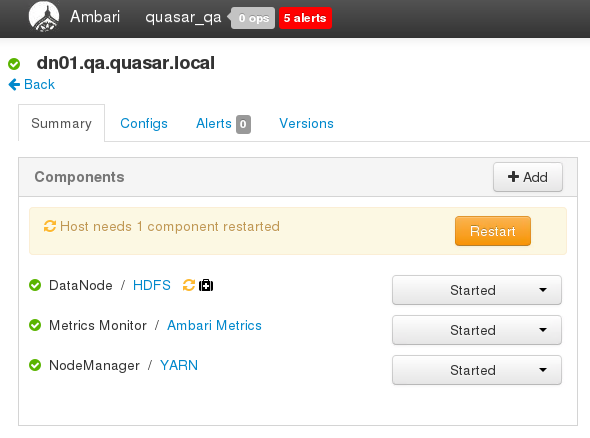
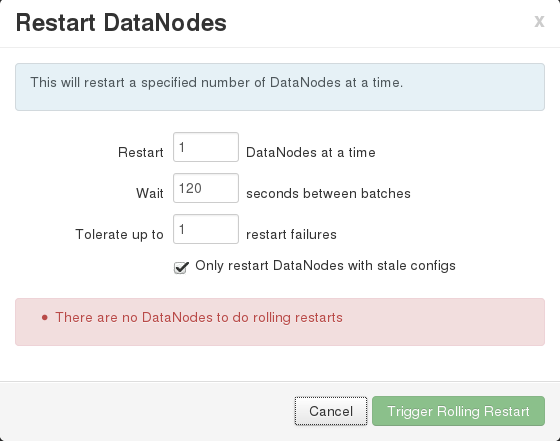
I ran into a problem today with Ambari where I wanted to do a rollling restart of all of my DataNodes, but when I clicked on the “Restart DataNodes” entry in the “Restart” drop down the dialog indicated “There are no DataNodes to do rolling restarts”.

This was clearly incorrect.

It did not take me too long to figure out that I had already put HDFS into Maintenance Mode.  As a result, Ambari does not see that there are any DataNodes that need to be restarted.

Taking HDFS out of Maintenance mode allowed me to then execute a rolling restart through Ambari.